What is Base64 encoding?
This Base64 encoder and decoder runs entirely in your browser — no files or text ever leave your device. It handles plain text, URL-safe strings, files up to 100 MB, and generates Data URIs for embedding binary in HTML and CSS. Whether you are debugging an API response, embedding a tiny image in a stylesheet, or migrating data between systems, the tool covers the full Base64 workflow in one place.
Base64 is a binary-to-text encoding that maps every 3 bytes of input to 4 printable ASCII characters from a 64-character alphabet (A–Z, a–z, 0–9, +, /). The = padding at the end signals how many bytes the final group contains. Because the output consists only of common ASCII characters, it travels safely through systems that were designed for plain text — email headers, XML attributes, JSON payloads, URL query parameters, and HTML form fields.
The name comes from MIME's Base64 content-transfer-encoding, but the same scheme appears under different guises everywhere: OAuth tokens, JWT claims, TLS certificates, configuration files, and log exports. Knowing the difference between the standard alphabet, URL-safe Base64URL (RFC 4648), and raw no-padding form matters when you are passing encoded data through an HTTP API or a cloud configuration field.
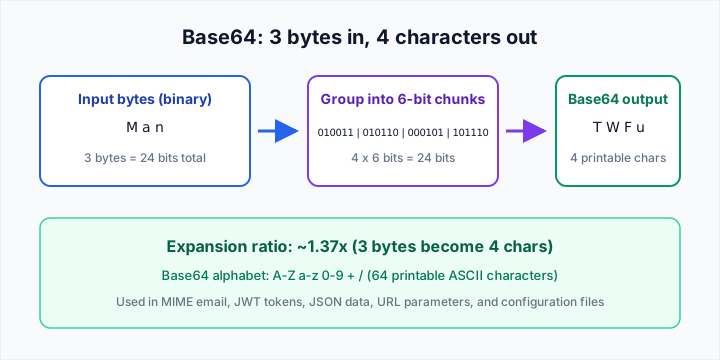
What this shows: every 3 input bytes become exactly 4 Base64 characters — producing roughly a 33% size increase compared to the raw binary.
Encoding plain text to Base64
Select Encode, paste your text, pick a variant, and the output appears instantly. The default Standard variant uses the classic MIME alphabet with + and / as the last two characters — correct for most uses. The URL-Safe variant replaces those with - and _ so the encoded string can appear in a URL without being percent-encoded. The Raw variant strips the trailing = padding, which is useful when the receiving side parses Base64 dynamically and treats padding as optional.
Enable Live mode to watch the encoded output update character by character as you type. That is the fastest way to test a string before pasting it into an API body or a config editor.
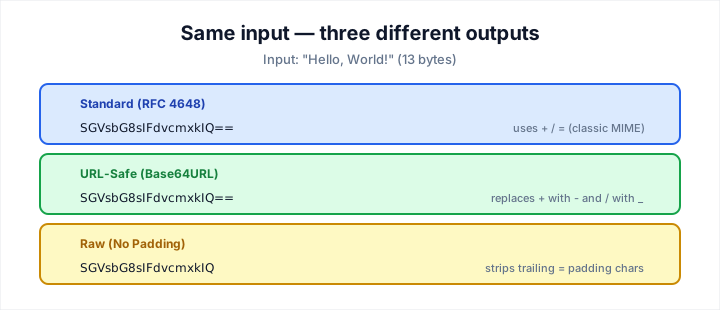
What this shows: how the same input string produces three different outputs depending on the variant — and why URL-safe is essential for tokens in query parameters.
Decoding Base64 back to plain text
Select Decode, paste a Base64 string, choose the source character set, and click Decode. UTF-8 covers the vast majority of modern use cases — web APIs, JSON fields, log files from Node.js or Python. If you are working with legacy Windows systems or files from older servers, switch to windows-1252 or ISO-8859-1. For CJK content, try GB18030, Shift_JIS, or EUC-KR depending on the source system.
Toggle Line-by-line when your input contains multiple independent Base64 values separated by newlines — each line is decoded separately and the results are joined with newlines. This is common in SSH key files, PEM certificates, and batch exports from database tools.
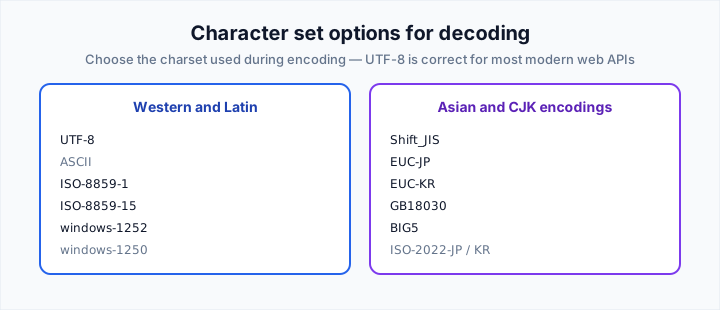
What this shows: the character set dropdown covers Latin, CJK, Cyrillic, and legacy Windows encodings so you can recover text that was encoded with a specific system default.
URL-Safe Base64 and RFC 4648
Standard Base64 uses + and /, which have special meaning in URLs and HTML attributes. If you paste a standard string into a query parameter, the + will be decoded as a space before the decoder ever sees it. Base64URL solves this by substituting + with - and / with _, and optionally stripping padding so the output contains only URL-safe characters (A–Z, a–z, 0–9, -, _).
URL-Safe Base64 is the encoding of choice for JWT tokens (header and payload segments), OAuth 2.0 client credentials, GCP signed URLs, and any configuration field that passes through a web server without percent-encoding. Always verify which variant your downstream service expects — mixing them is a silent failure that produces garbled output.
Encoding and decoding binary files
Switch to the File tab to encode any file up to 100 MB directly in your browser. The file is read as a binary ArrayBuffer, converted to bytes, and Base64-encoded without ever leaving your machine. For image files, the tool detects the MIME type from the binary magic bytes and shows a live preview alongside the Base64 output. You can copy the raw string, download it as a .txt file, or grab a ready-to-paste Data URI for immediate use in an <img> tag.
To reverse the process, paste a file's Base64 representation into the decode panel, select the MIME type (or accept the auto-detected guess), and download the original binary. The tool does not keep a copy of any uploaded or downloaded file — everything is processed in-memory and discarded when you close the tab.
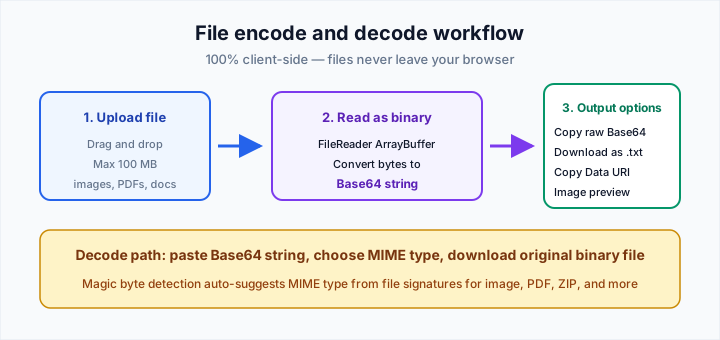
What this shows: how a binary file flows through the tool: uploaded locally, Base64-encoded, then available as raw text, Data URI, or a restored download — all without a server round-trip.
Generating Data URIs
A Data URI is a Base64 string prefixed with a MIME type declaration: data:image/png;base64,iVBORw0KGgoANSUhEUgAAAAEAAAAB…. You can paste this directly into an HTML <img src> attribute or a CSS background-image URL, embedding the image without needing an external file or a CDN fetch. Our tool generates the full Data URI for you after any text or file encoding operation.
Data URIs are best for small assets — favicons, small icons, inline SVGs, and tiny thumbnails — where the overhead of an extra HTTP request outweighs the caching benefit. For large images, a regular <img> with a src pointing to a hosted file is the better choice.
Character sets and encoding caveats
Base64 itself is encoding-agnostic — it processes bytes, not characters. The moment you decode bytes back to text, the character set matters. If UTF-8 encoded text is decoded as windows-1252, accented letters and non-ASCII symbols will appear as wrong characters. Always confirm the source system's default encoding before choosing a charset for decode.
The tool does not model or insert leap seconds, time zones, or locale formatting at the encoding layer — it is purely a byte transformation. For timestamp encoding, pair this tool with our Unix timestamp converter when your logs embed both Base64 and epoch integers.