What Is a JSON Formatter — and Why Every Developer Needs One
If you have ever received a wall of compressed JSON from an API response and tried to make sense of it, you know the frustration. A single line of tightly packed key-value pairs with nested arrays and objects is nearly impossible to read without help. That is exactly what a JSON Formatter solves — instantly transforming raw, unreadable JSON into clean, indented, human-friendly output.
Our free online JSON Formatter goes beyond simple beautification. It validates your JSON syntax, highlights errors with line numbers, lets you explore data through Tree View and Graph View, and can even attempt to fix common mistakes automatically. Whether you are debugging an API integration, reviewing a configuration file, or preparing data for documentation, this tool handles the heavy lifting so you can focus on the work that matters.
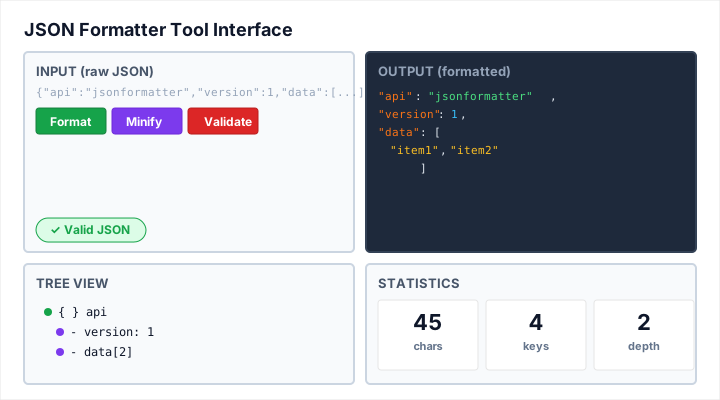
What this shows: The JSON Formatter interface with syntax-highlighted output and interactive navigation.
Features visible: Indented JSON output, collapsible tree nodes, and error indicators.
What Is JSON and Why Does Formatting Matter?
JSON (JavaScript Object Notation) is the most widely used data interchange format on the web today. It powers REST APIs, configuration files, NoSQL databases, frontend-backend communication, and much more. Its lightweight structure and human-readable design made it the de facto standard for transmitting structured data between systems.
However, "human-readable" only holds true when the JSON is properly formatted. In production environments, JSON is almost always minified — all whitespace stripped out — to reduce payload size and improve transmission speed. This is great for machines, but terrible for humans trying to read or debug it.
Proper formatting matters because:
- Debugging becomes faster — you can immediately spot missing commas, mismatched brackets, or wrong value types
- Code reviews are clearer — reviewers can follow nested structures without mentally parsing compressed text
- Documentation improves — formatted JSON in docs and README files is far more understandable
- Onboarding is easier — new team members can quickly grasp data structures when they are visually organized
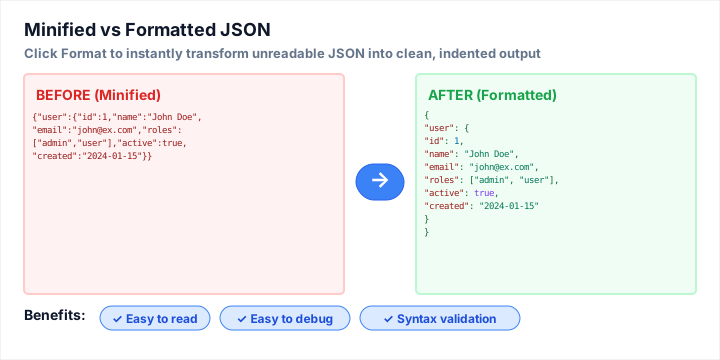
What this shows: How minified JSON transforms into readable, indented output.
Use case: Instantly understand complex nested structures without manual reformatting.
How to Use the JSON Formatter — Step by Step
Using the tool is straightforward, even if you are new to JSON. Here is a quick walkthrough:
Step 1: Paste or Type Your JSON
Copy your raw JSON data from an API response, a log file, a database export, or wherever you are working with it, and paste it into the input panel. You can also type JSON directly if you are building or testing a structure from scratch. If your input comes from a document with hidden whitespace, run it through Remove Extra Spaces first to prevent unexpected parsing issues.
Step 2: Choose Your Indentation Style
Select your preferred indentation width — 2 spaces, 3 spaces, or 4 spaces. Two spaces is common in JavaScript and Node.js projects; four spaces is popular in Python-heavy environments. Choose whatever matches your team style guide.
Step 3: Format and Validate
Click the Format button. The tool immediately parses your JSON, applies indentation, and displays the formatted result. If there are syntax errors, they will be highlighted with the exact line number and a description of what went wrong — no more hunting through hundreds of lines manually.
Step 4: Explore Tree View or Graph View
Switch to Tree View to navigate your JSON as a collapsible, interactive hierarchy. This is especially useful for deeply nested objects where you want to expand or collapse branches. Switch to Graph View to see relationships between objects visualized as a network diagram — a powerful way to understand complex data models at a glance.
Step 5: Minify or Copy Your Output
Once you are satisfied, copy the formatted JSON to your clipboard, or use the Minify option to compress it back into a single line for use in production code or API requests.
Common JSON Errors and How to Fix Them
JSON has strict syntax rules, and even experienced developers make mistakes. Here are the most common errors and what they mean:
Trailing Commas
One of the most frequent mistakes is leaving a comma after the last item in an object or array. JavaScript objects allow trailing commas in many contexts, but JSON does not. Example: {"name": "Alice", "age": 30,} — that final comma before the closing brace is invalid.
Unquoted or Single-Quoted Keys
In JSON, all keys must be wrapped in double quotes. Writing {name: "Alice"} or {'name': 'Alice' } is valid JavaScript but invalid JSON. This trips up developers who copy object literals directly from code.
Missing Commas Between Properties
Forgetting a comma between two key-value pairs is another common slip, especially when adding new fields to an existing object. The formatter will point directly to the line where the parser expected a comma but did not find one.
Mismatched Brackets or Braces
Every opening { needs a closing }, and every [ needs a ]. In large, nested structures, it is easy to lose track. The Fix JSON button in our tool can detect and repair many of these structural issues automatically.
Invalid Value Types
JSON supports strings, numbers, booleans (true/false), null, objects, and arrays — and nothing else. Values like undefined, functions, or unquoted strings will cause parsing errors. The formatter will flag exactly where the invalid value appears.
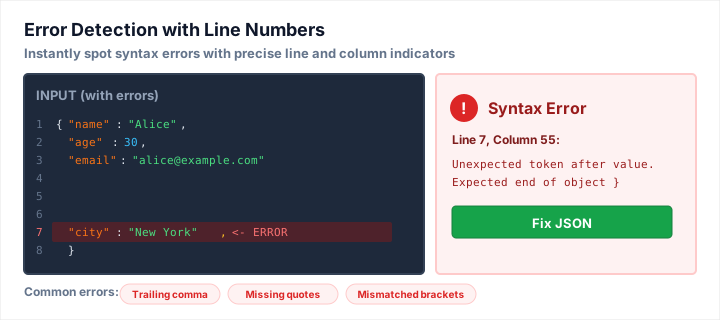
What this shows: Error highlighting with precise line numbers so you can locate and fix syntax mistakes quickly.
Benefit: Replaces tedious manual searching through long JSON files.
Understanding Tree View and Graph View
Tree View: Navigate Nested Structures Intuitively
Tree View presents your JSON as a collapsible hierarchical tree, similar to how a file explorer shows folders and files. Each object becomes an expandable node, each array shows its items as children, and primitive values (strings, numbers, booleans) appear as leaf nodes. This is invaluable when working with deeply nested API responses — for instance, a Stripe payment object or a GitHub API response can have six or seven levels of nesting that are nearly impossible to follow in plain text.
With Tree View, you can:
- Collapse entire branches to focus on the parts you care about
- Quickly count array items without scrolling through all of them
- Identify the exact path to a specific value for use in code like
response.data.user.address.city
Graph View: Visualize Data Relationships
Graph View takes a different approach, rendering your JSON as a node-relationship diagram. Each object or array becomes a visual node, and connections between parent and child elements are drawn as edges. This view is particularly helpful for data engineers and architects who want to understand how entities relate to each other within a complex data structure — think of it as a quick schema diagram generated directly from your data.
Best Practices for Working With JSON
Beyond formatting, here are some professional habits that will make your JSON work smoother:
- Always validate before deploying — run your config files and API mocks through a validator to catch errors before they hit production
- Use consistent key naming — stick to
camelCaseorsnake_casethroughout your project, never mix them - Avoid deeply nested structures when possible — flat or shallowly nested JSON is easier to query and less error-prone
- Minify for production, format for development — keep formatted JSON in your version control and configuration, but always serve minified JSON over the wire
- Use meaningful key names —
userEmailAddressis clearer thanuea, especially for anyone else reading your data model - Include null explicitly — rather than omitting optional fields, include them as
nullto make your data structure predictable and self-documenting
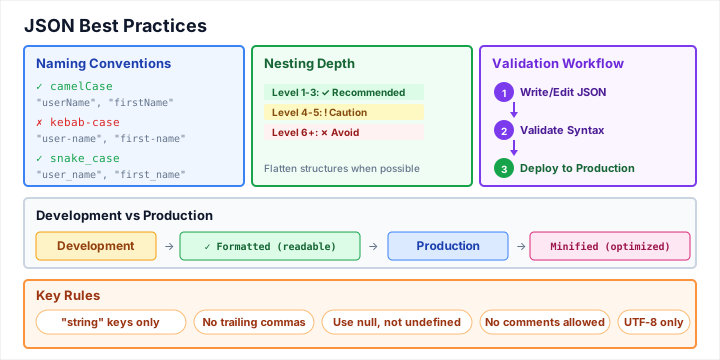
What this shows: A visual summary of JSON best practices for developers and data engineers.
Topics covered: Naming conventions, nesting strategy, validation checkpoints, and production vs. development workflows.
Related Tools You Might Find Useful
JSON formatting is often just one step in a broader workflow. Here are some other free tools on Trust Tool that developers and data professionals reach for regularly:
- Base64 Encoder/Decoder — Many APIs transmit binary data or credentials as Base64 strings embedded inside JSON payloads. Encode or decode those values instantly.
- Remove Extra Spaces — When you copy JSON keys or string values from documents or emails, hidden extra whitespace can cause unexpected bugs. Clean them up before they cause problems.
- Sort Text Lines — Need to alphabetically sort a list of JSON keys or values you have extracted? Sort, reverse, and deduplicate lines of text in seconds.
- Slug Generator — If your JSON data contains title or name fields that need to be converted into URL-safe slugs, the Slug Generator handles the conversion cleanly.
- Word Counter — Analyzing text content stored inside JSON fields? Measure character counts, word counts, and reading time for string values you are validating.
Whether you are a backend developer wrangling API responses, a frontend engineer debugging state management, or a data engineer processing pipeline output, the JSON Formatter is one of those tools you will find yourself coming back to every single day. Bookmark it, share it with your team, and take the frustration out of working with JSON for good.